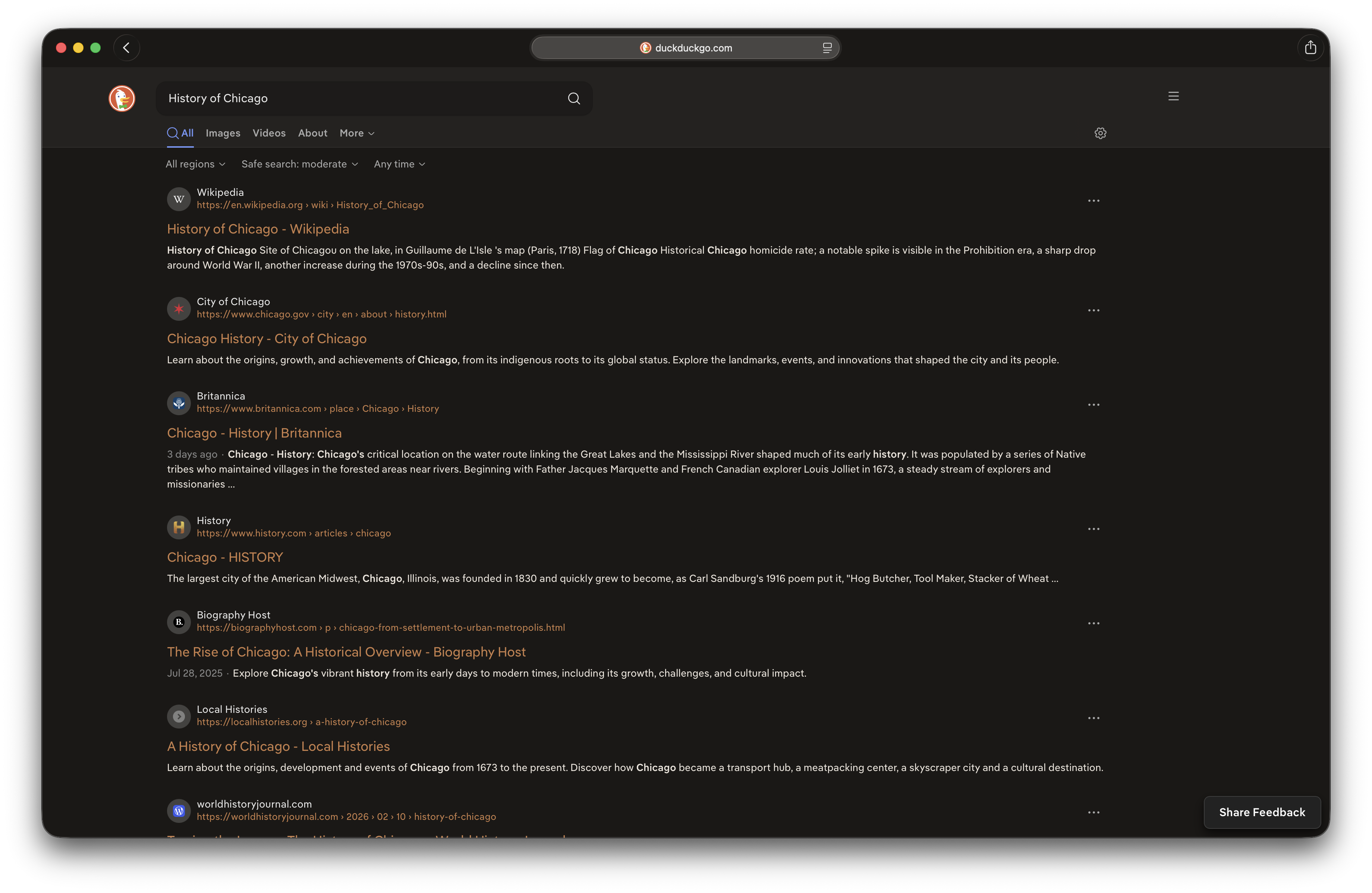
There’s a lot of hype about accessing DuckDuckGo via its “noai” subdomain. It works, but there’s a better way.
Instead of using a special domain to access DuckDuckGo, a method that works, but not in every situation, you can just use the normal DuckDuckGo domain, without AI and customizable even further to serve your needs. Just look at the screenshot at the top of this post. It has no AI, custom colors and a lot of other settings customized. Best of all, DuckDuckGo shows up like this on all of my devices, in Safari or other browsers, without plugins or anything else.
Edit the DuckDuckGo Settings
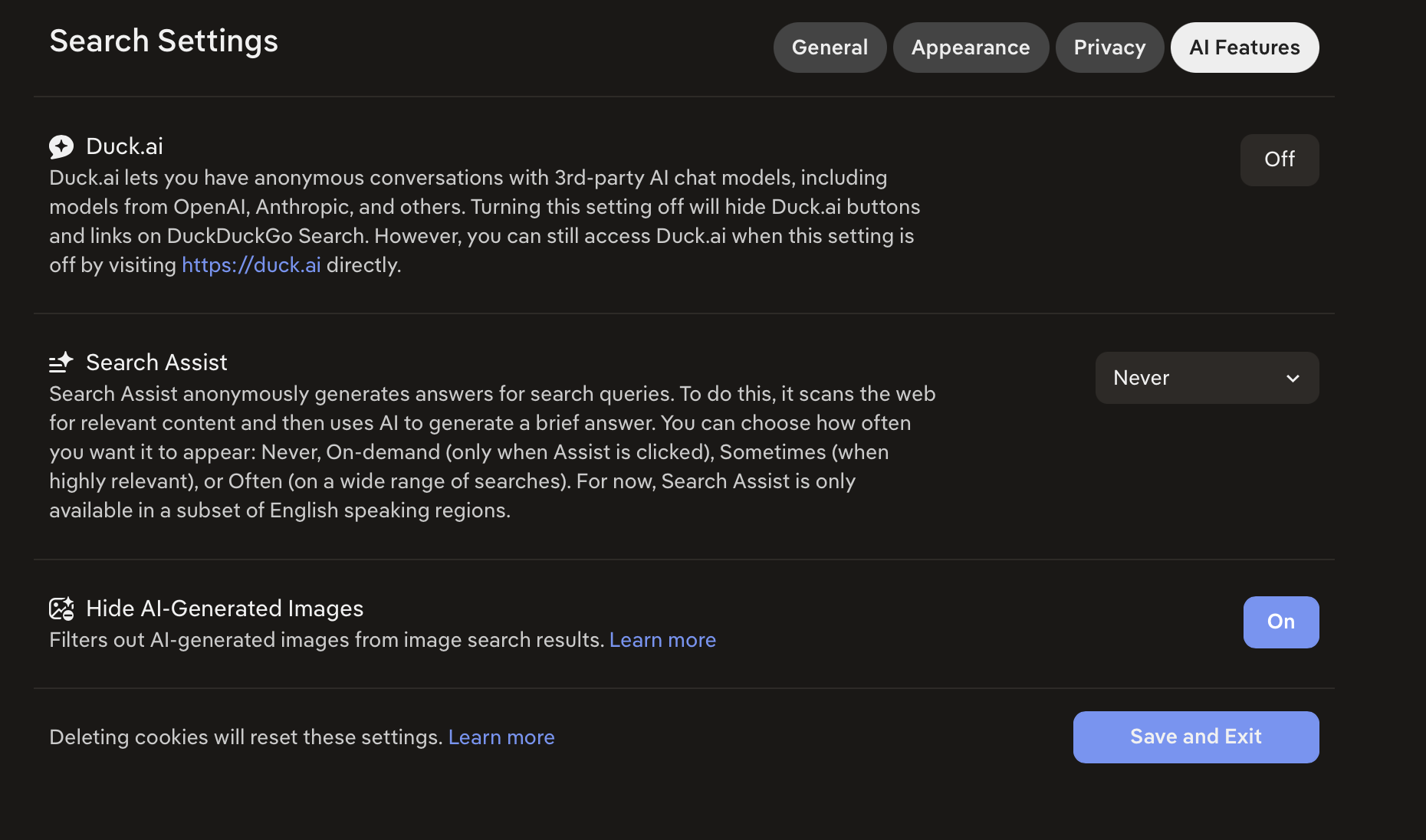
If you click the menu in the top right corner of DuckDuckGo you can select “Settings.”

Here you can set colors, privacy settings and a lot more… including AI settings.
Save your Settings
When you have DuckDuckGo configured the way you want it, simply save your settings with the save dialogue. I would recommend setting a password with your password manager so it’s sufficiently complex enough to avoid being guessed.
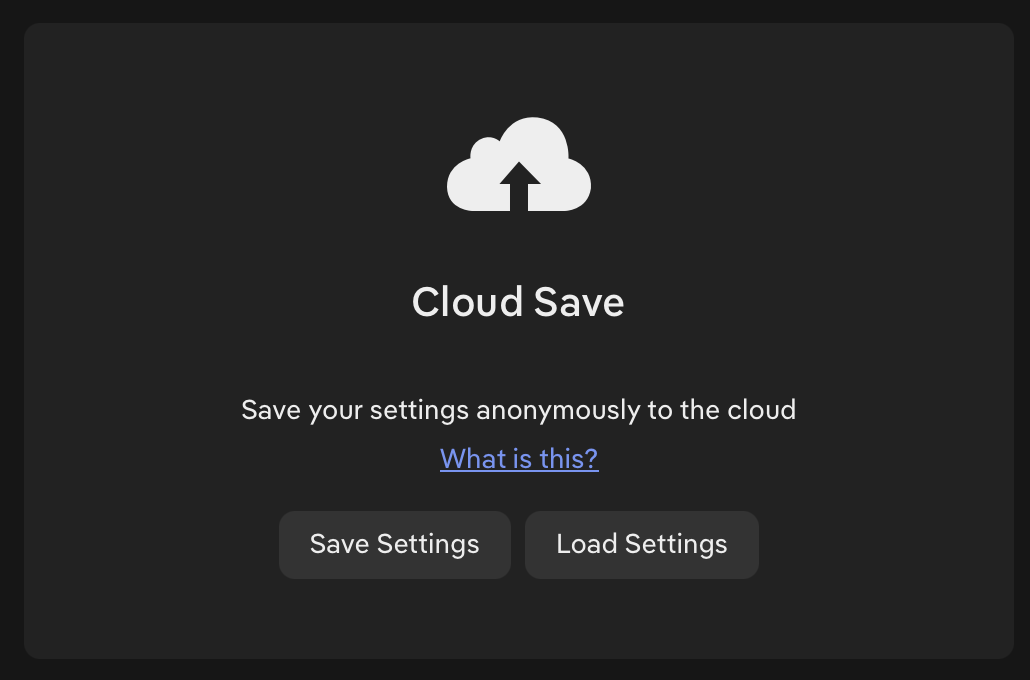
Note that DuckDuckGo saves passwords anonymously. This means that you’re never identified and you don’t even tell them who you are. There’s no email or other identifying info, just the password.
Load the Settings on Other Devices
After you’ve saved your settings on one device or browser, simply open DuckDuckGo on another device or browser, go to the settings and load them with the password you used.
That’s it.
With about 5 minutes of work you can not only turn off AI in DuckDuckGo, but you can also customize its design and other features to better suit the way you work.