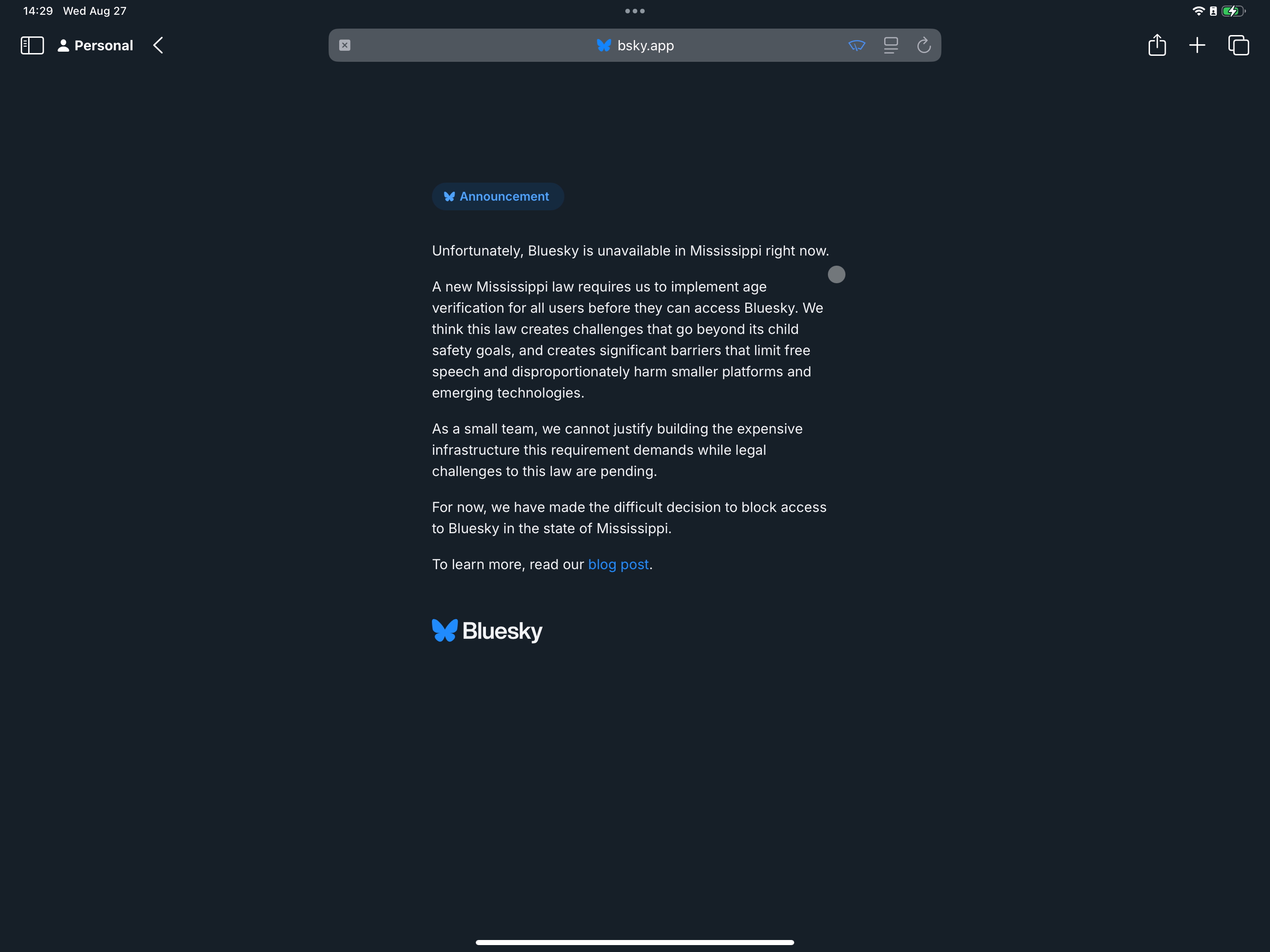
Last week Bluesky took the drastic step of blocking users from Mississippi due to their draconian age verification laws. In theory, as long as you aren’t trying to access the service from within Mississippi it shouldn’t be a problem, but in reality theory and practice are two very different things.
If you’re an Apple user like me you might have iCloud Private Relay turned on. Private Relay is a great feature of paid iCloud accounts that essentially hides your IP address from the sites you visit making it much harder for companies to track you across the web.
In its most-secure mode, Private Relay will assign IP addresses each time you open a new site and those IP addresses can be anywhere within your country and time zone. This is where Bluesky starts to have issues.
In order to block users in Mississippi, Bluesky looks solely at the IP address and blocks you if that IP address itself is from Mississippi. As Private Relay can identify as coming from anywhere within the US Central Time Zone, this means it occasionally blocks me from the service, even from Illinois.
Thankfully the problem is rare and easy to get around. You can do so in one of three ways:
- Disable iCloud Private Relay, either temporarily or permanently
- Limit Private Relay to your general area, which is less private
- Show your IP address to Bluesky with that one page load
Personally I think the first two options aren’t great as the first, even when temporary, can show your IP address to a host of sites and the second does make it easier to see your general location. As I don’t always access Bluesky from Safari the 3rd option is then fine for me. I just show Bluesky my IP that one time and I’m fine. Considering I only hit the issue once a week or so, that’s fine to me.
Here’s how you can show Bluesky your IP address on iPad, iPhone or MacOS:
MacOS
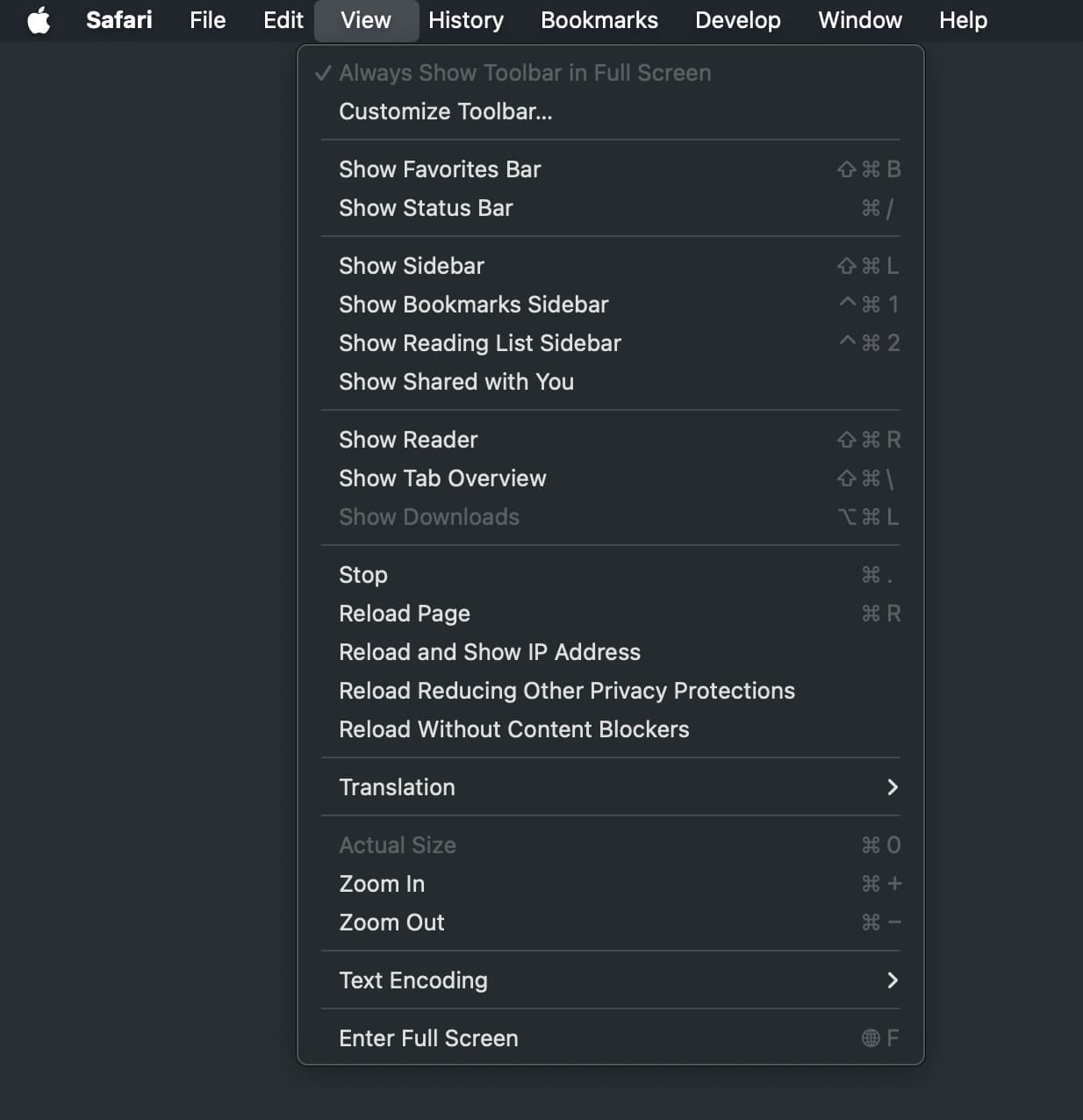
On MacOS go to the “View” menu and elect “Reload and Show IP Address”
iOS/iPad OS
On mobile devices:
- Select the menu button on the left side of the URL (it’s a box with two lines under it).
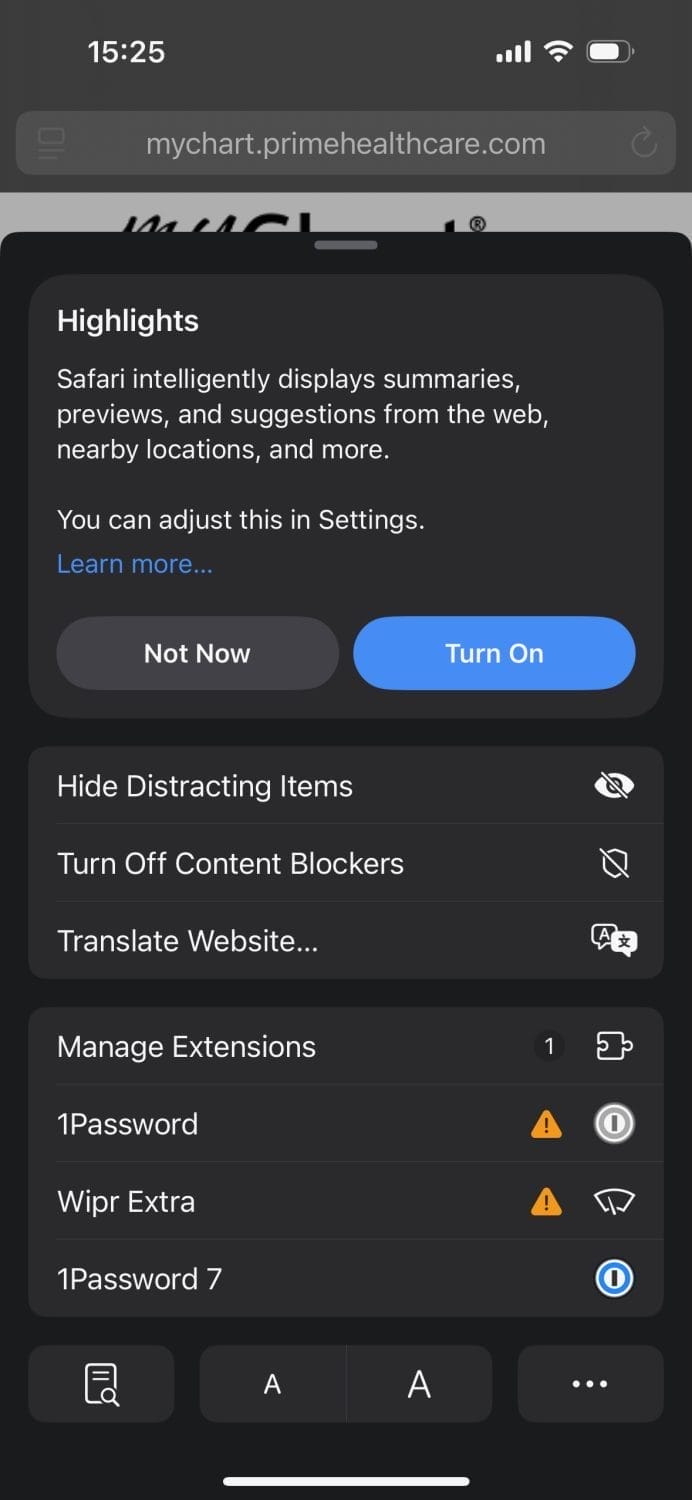
- Select the 3 dots menu in the bottom right
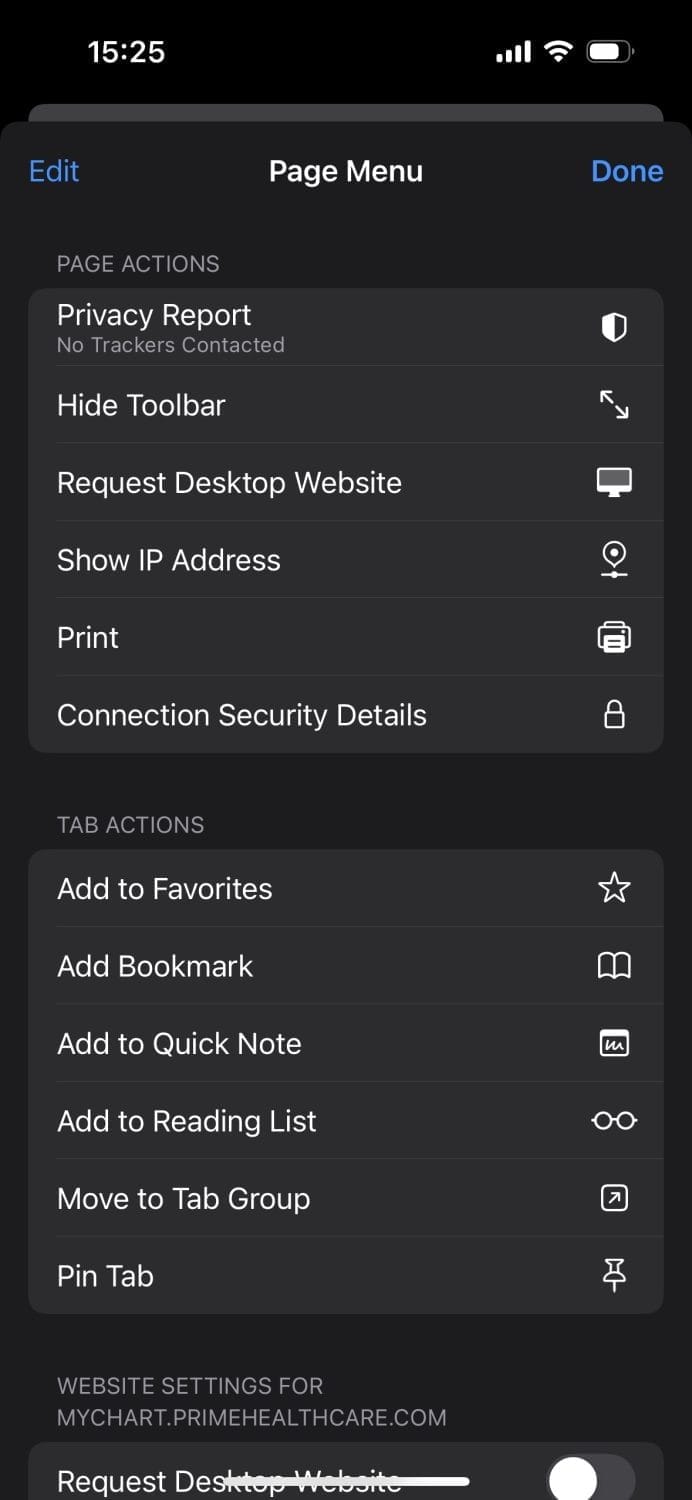
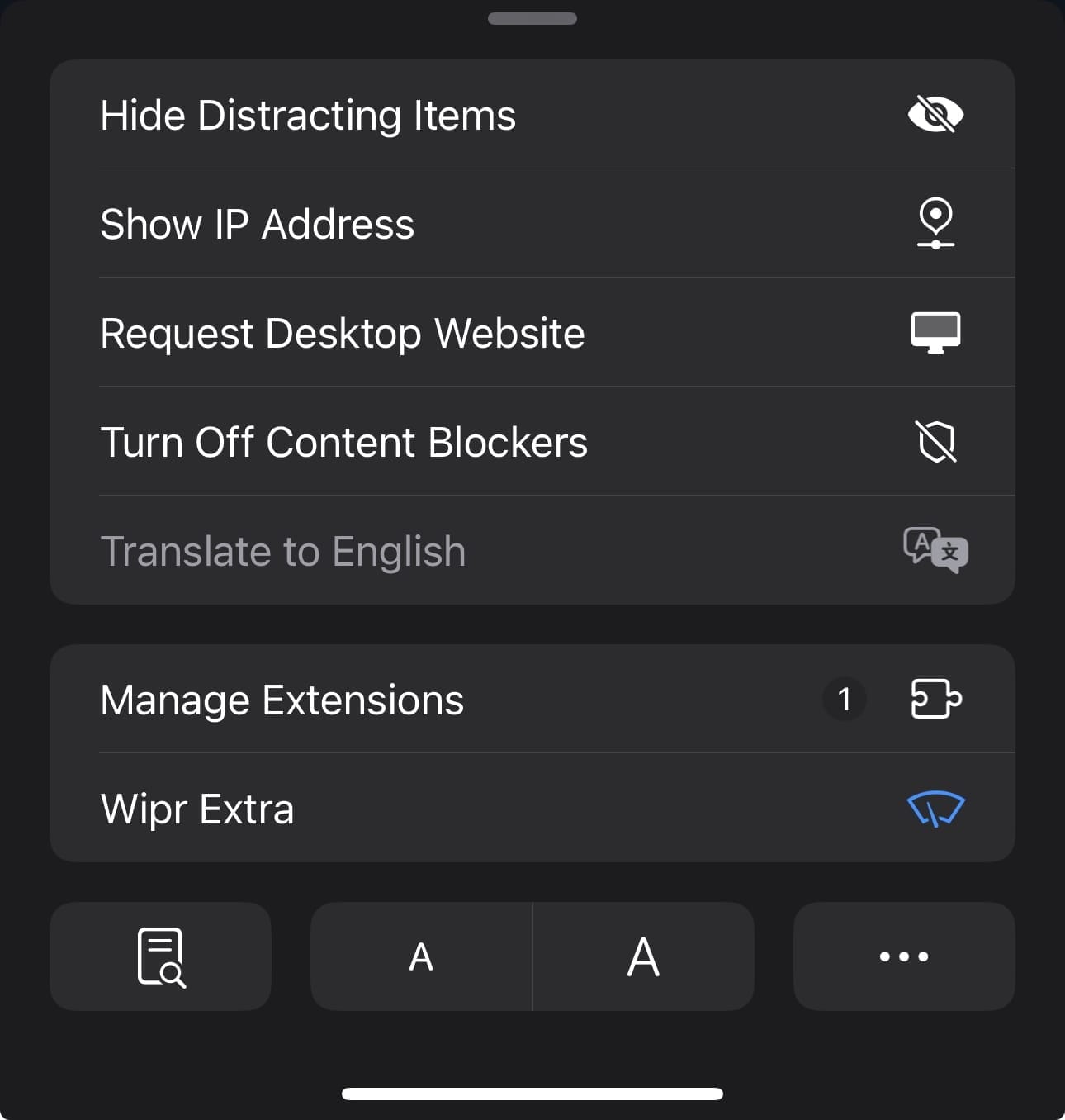
- Select “Show IP Address”
To make this easier, you can edit the page menu and make “Show IP Address” a permanent addition without going into the second menu. The screenshot below shows that on my own phone:
Now you should be able to load Bluesky in your browser even when iCloud Private Relay makes it think you’re in Mississippi.